
note2it for Chrome: save what you're reading without leaving the tab
The note2it extension for Chrome saves the page you are on, a passage you selected, or a link straight into the notebook you choose, as a clean article with its source attached. How to set it up, what it saves, what it reads, and what it cannot do yet.
You find the article that settles the argument, and you leave the tab open so you won't lose it. By Friday there are forty tabs, the browser restarts, and the article is gone. Or you bookmark it, and it joins three hundred other bookmarks with no hint of why you kept it.
Reading is rarely the problem. Getting what you read into the place where you do your thinking is. Today that gets shorter: note2it for Chrome saves the page in front of you into the notebook you choose, in one click, without leaving the tab.
Set it up once
Add note2it from the Chrome Web Store, then click its icon in the toolbar and choose Sign in to note2it. A window opens on note2it's own authorization screen: sign in if you aren't already, check what the extension is asking for, and approve.
Then pick a notebook, and a section if you use them. The extension remembers the choice, so from here on saving is one click. It works on every plan, including the free one.
Four things you can save
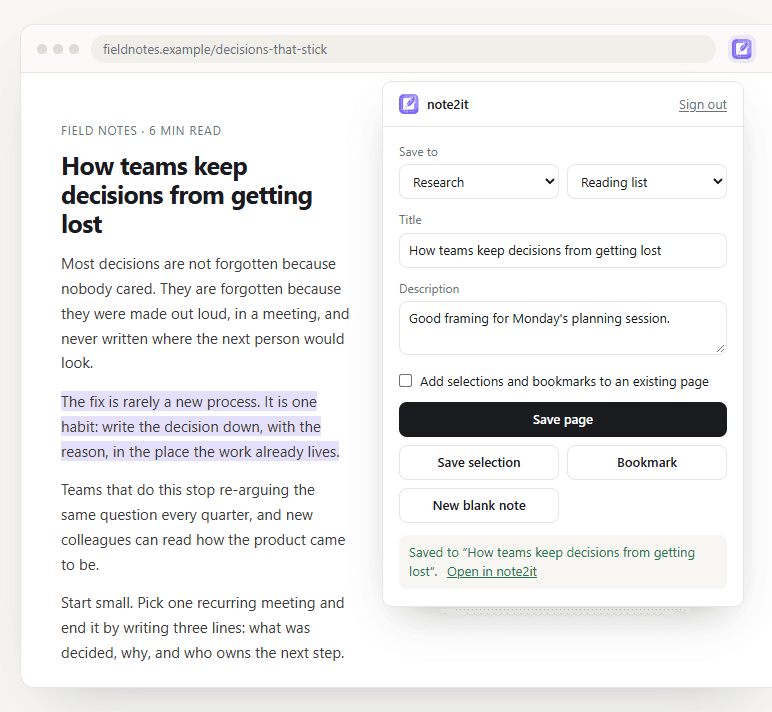
Save page keeps the article itself: the readable text with its headings, lists and links, without the menus, ads and cookie banners around it. At the top of the new page sits a link card back to the source, so you always know where it came from.
Save selection keeps only what you highlighted. It lands as a quote, with the source card under it. Useful when one paragraph is the point.
Bookmark keeps the link as a card with the page's title and picture, and under it the line you type in Description. That line is the difference between a bookmark and a note: it is where you say why you kept it.
New blank note creates an empty page in the notebook you picked and opens it in note2it, for when the page gave you an idea rather than something to keep.
Without opening anything
You don't have to open the extension each time. Right-click a page and choose Save page to note2it. Right-click a selection to save it as a quote. Right-click any link to keep it for later without opening it.
There are shortcuts too: Alt+Shift+S saves the page and Alt+Shift+B bookmarks it, both into the notebook you last chose, and Alt+Shift+N opens the extension. A small check mark on the icon tells you it worked. You can change the keys at chrome://extensions/shortcuts.
One page per save, or one running list
By default every save becomes its own page. For some things that is too many pages. Tick Add selections and bookmarks to an existing page, search for the page you want, and from then on quotes and bookmarks are added to the end of it. A reading list, a research page for one project, a page of quotes for an essay: one page that grows as you browse.
If you happen to be editing that same page in note2it at that moment, the extension notices, reads the page again and adds to the latest version rather than overwriting your edit.
What it reads, and what it doesn't
An extension that can see web pages owes you a straight answer about what it looks at. This one looks at a page only when you open it or use a save action. When you open it, it reads the page's title and checks whether you have selected text, and nothing leaves your browser. When you save, it sends note2it what that save needs: the address, the title, and the article, the selection or your description.
It does not run on pages in the background, keeps no history of the pages you visit, and has no analytics or advertising in it. What you save goes to your note2it account and nowhere else, and is stored like anything else you write.
The extension connects to your account the same way other apps do, with its own entry under Settings › Connected apps. Disconnect it there and it stops working at once. It can read and write your notes; it cannot delete your account or touch your billing.
What it can't do yet
Some pages cannot be read by any extension: Chrome's own pages, the Chrome Web Store, and the built-in PDF viewer. There, Save page and Save selection are switched off; Bookmark still works wherever the page has a normal web address.
Tables in an article come through as plain text for now. Pictures in a saved article are not copied: they stay linked to the original site, so they disappear if the site removes them. And a page with no real article, such as a dashboard or a page of search results, has nothing to save as a page; bookmark it instead.
It is for Chrome on a computer today. Next we want it to summarize the page you are on.
Get it
note2it for Chrome is free and available now in the Chrome Web Store. You need a note2it account, and the free plan is enough.