
Import a PDF into your notes — and keep the bold, the headings, and the underlines
Drop a PDF into any page and note2it turns it into editable blocks: headings, bold, italic, underline, lists and centred titles, recovered from the file's own layout. AI can restore structure, read scanned documents, and translate the whole page.
A lot of what we need to think about arrives as a PDF: the contract to review, the report to annotate, the course handout to study from. And a PDF is a dead end for notes. Copy the text out and you get a wall of words with the line breaks in the wrong places — no headings, no bold, no lists, nothing that told you where one clause ended and the next began.
Today a PDF can go straight into a page. Open the page menu, choose Import PDF into this page…, pick the file, and a few seconds later the document is there as ordinary editable blocks: paragraphs you can rewrite, headings you can collapse, bullets you can tick, text you can link from other pages. The original file is kept in your media library, next to your images.
What the import keeps
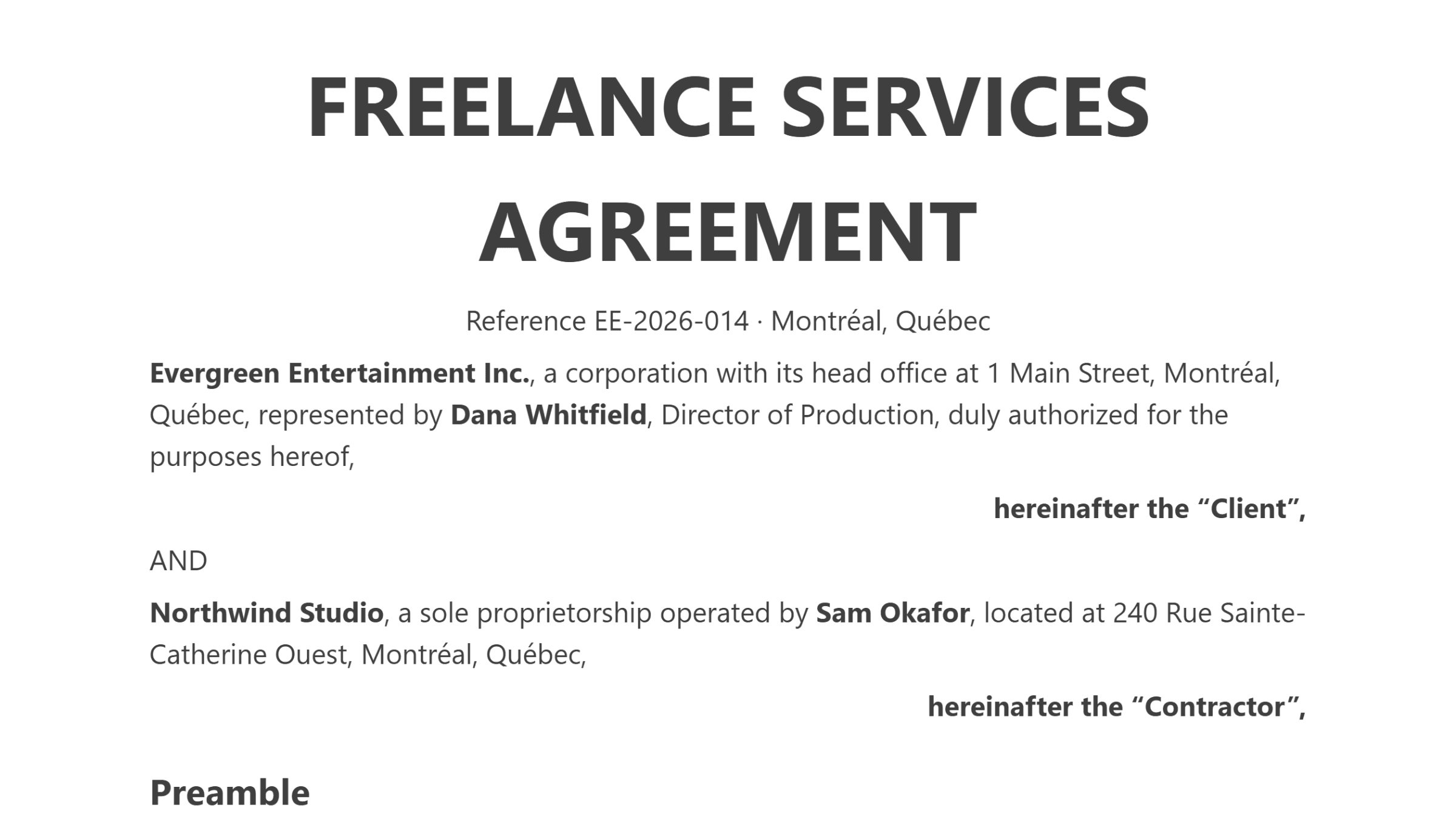
A PDF doesn't say "this is a heading" or "this word is bold". It only knows which font each run of text was drawn in, how large, and where on the page. So note2it reads that: the fonts the file embeds tell it which runs were bold or italic; a thin line drawn right under a run is an underline; a line set in a larger size is a heading; a gap between lines wider than the usual spacing is a paragraph break; a line that starts where a bullet or a number would be is a list item.
It also notices what a reader notices without thinking. A title sitting in the middle of the page becomes a centred heading. A line pushed to the right margin — "hereinafter the Client" — stays on its own, right-aligned. The page number and running header repeated on every page are dropped instead of landing in the middle of a sentence. Bold and italic survive even inside a bullet, and so does the comma at the end of a bold name.
All of this is done by reading the file, deterministically. In the default mode no model is involved and not a word is changed: what was in the PDF is what lands on the page, with its formatting back.
Two ways to import
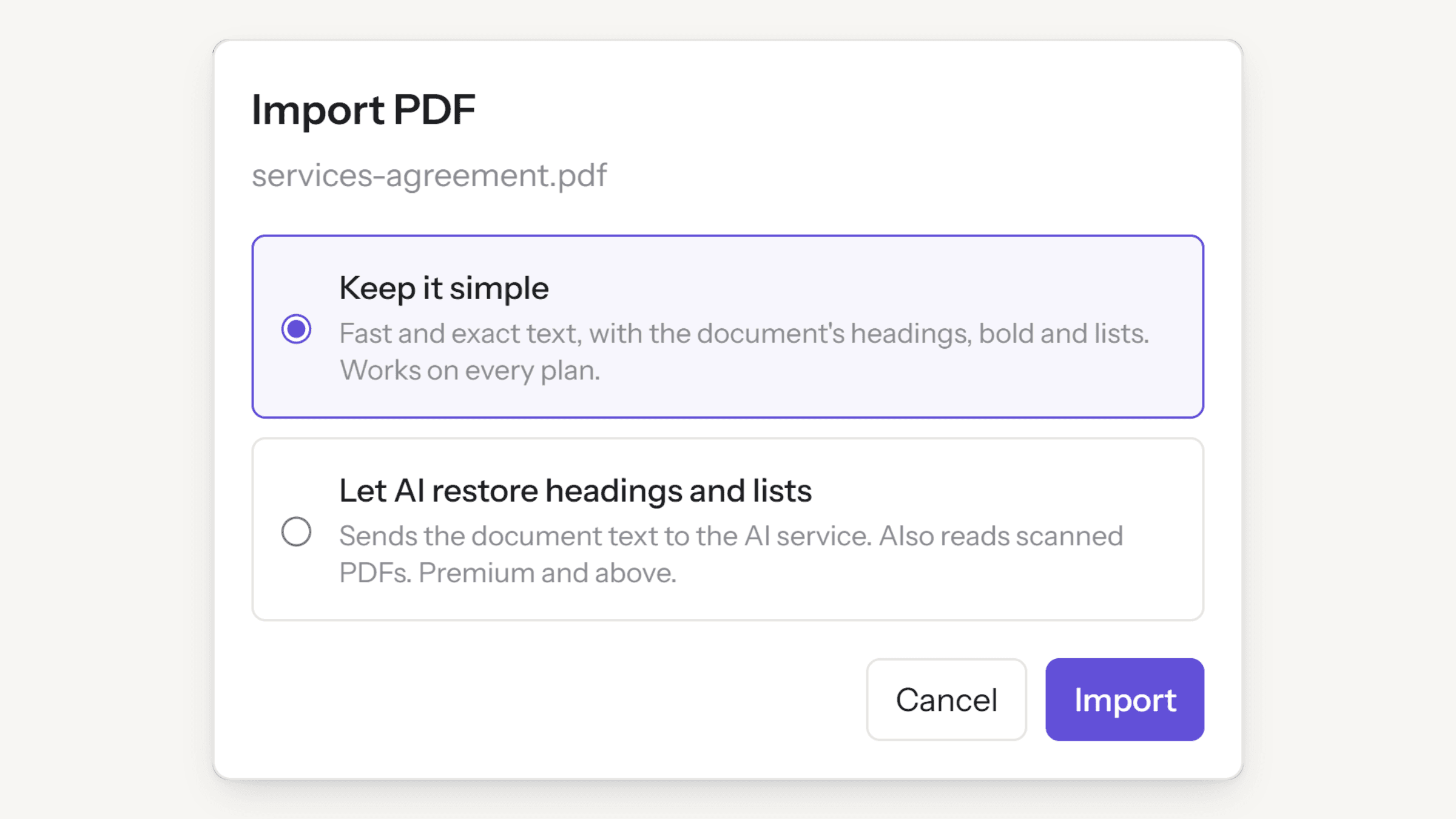
The import dialog offers two modes. Keep it simple is the one just described — fast, exact, and available on every plan including the free Standard plan. It is the right choice for most documents, and for anything you'd rather not send anywhere.
Let AI restore headings and lists takes the same text, already carrying the recovered bold, headings and paragraph breaks, and hands it to the AI model to fix what the layout alone couldn't tell: a heading set in the same size as the body, a list whose markers were drawn as images, a table. This mode sends the document's text to the AI service, exactly as the page chat does, and it is included with Premium and Pro.
The AI mode also reads scanned PDFs — the ones that are really just photographs of pages, with no text layer at all. Pick a scan in simple mode and note2it tells you so and offers to retry with AI, which reads the pages as images and writes them out as text. Scans are limited to fifty pages per import.
Translate the whole page from the chat
Many of the documents people import aren't in the language they work in. So the page chat learned a new move: ask it to translate the page — "translate this page to English" — and instead of squeezing a long contract into a chat reply, it proposes a full-page translation and asks where the result should go.
Three targets. A new linked page, which creates the translation as its own page and adds a Translations line at the bottom of the original pointing to it — the default, and the right one for a contract you want to keep in both languages. Below the original, which appends the translation under a language heading on the same page. Or Replace the page, which saves the current version to the page's history first and then swaps the text in place.
Wiki links, tags and checkboxes come through untouched; headings, lists and formatting are translated in place, block by block. Translation runs on the AI service and is included with Premium and Pro.
Limits, and what leaves your account
One import handles up to 50 pages on Standard, 100 on Premium and 200 on Pro; a longer document is imported in parts. The uploaded PDF counts toward your media storage like any other file, and if an import fails the upload is removed so a failed attempt never costs you quota.
In Keep it simple mode nothing is sent outside note2it. In the AI mode the document's text — or, for a scan, the page images — goes to the AI service to be structured, the same way your chat questions do, and is not used to train anything. The import itself is recorded in your audit log as an event with the mode and the page count, never the content.
Try it with the next PDF that lands in your inbox
Open the page where it belongs, choose Import PDF into this page… from the page menu, and leave the mode on Keep it simple. You'll get the document with its headings, its bold and its lists back — and from there it is just a note: annotate it, link it, ask the chat about it, or have it translated. PDF import is included on every plan, starting with the free one.