
How to study for finals: record the lecture, get the summary, quiz yourself
A study system for the last weeks of term. Record the lecture in note2it and get a transcript with the time on every line, a summary that cites the minute your professor said it, deadlines as tasks and calendar invites, and a quiz written from your own notes with the answers hidden. What is free, what needs Premium, the student price, and a four-week plan.
Three weeks before finals, most of us study the same way: open the notes, read them again, highlight what looks important, feel productive. It is close to the least effective thing on the list. When Dunlosky and colleagues reviewed ten common study techniques in 2013, rereading and highlighting were rated among the least useful. The two rated most useful were practice testing and spreading your study over time.
The catch is that testing yourself needs questions, good questions need good notes, and by week twelve your notes on the lecture from week six are four lines and a doodle. So this post is a system for the end of term, built on three moves: record the lecture, let note2it turn it into notes you can check, then get quizzed on what your professor actually said.
Every screenshot below is real output. We scripted a two-minute biology lecture on enzyme kinetics, recorded it, and gave the audio to note2it. A real lecture is longer; the steps are the same.
Ask first
Recording a class is not always yours to decide. Many schools require the instructor's permission, some courses forbid it, and accessibility offices often arrange it formally. Ask your professor, or check the syllabus, before the first recording. Before every recording you make in note2it, you confirm that telling the people being recorded, and getting any consent required, is your responsibility; this is why. Keep the recording for your own studying, and do not post it.
Record the lecture
Make one page per lecture. On the page, type / and choose AI Meeting Notes (a lecture is a meeting where one person does most of the talking). Press Start recording and your laptop's microphone does the rest. Sit where you can hear the professor clearly, because the transcript can only be as good as the audio. For an online class, one toggle adds the audio of the call. If you recorded on your phone instead, Import audio brings the file in.
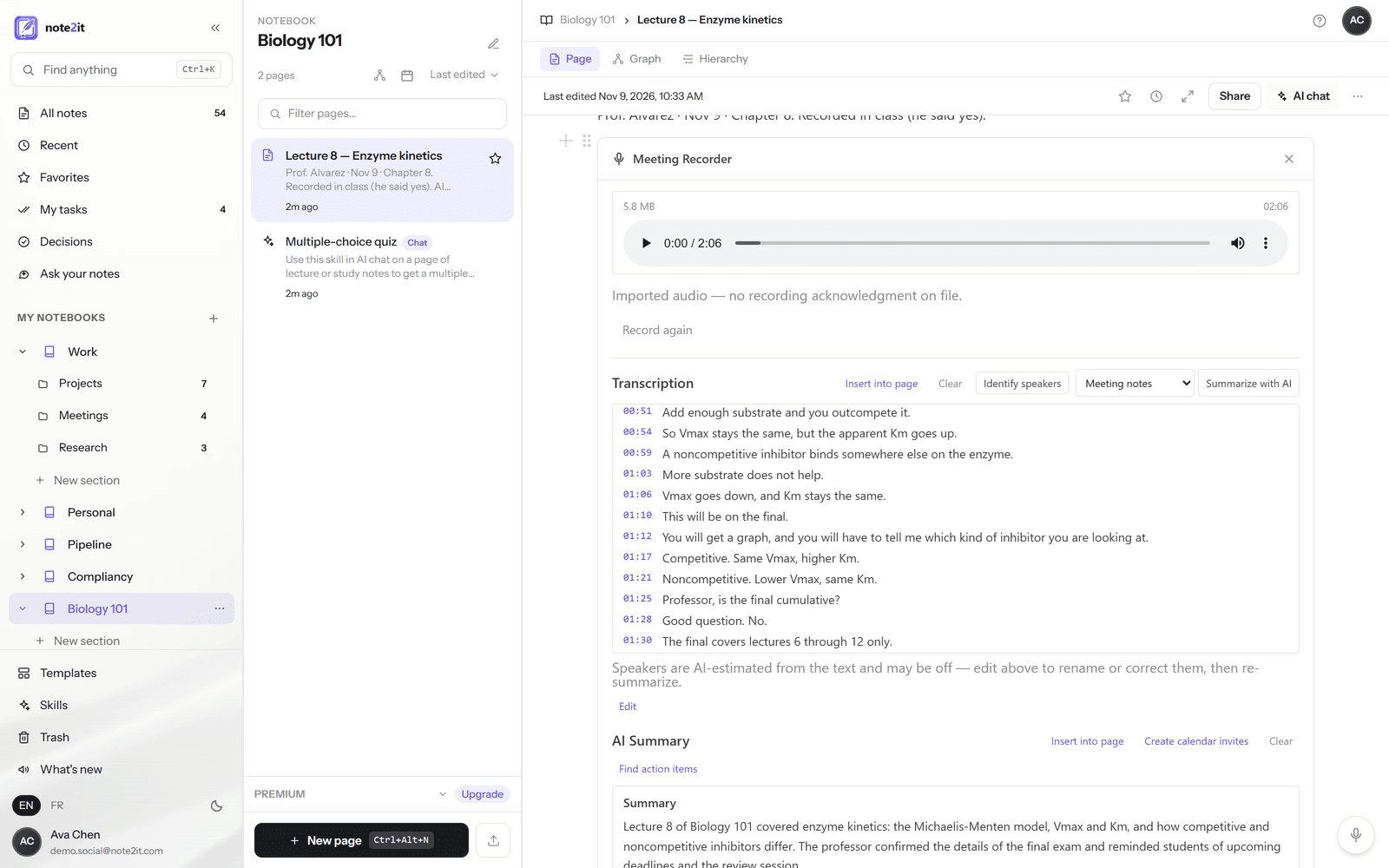
When you stop, press Transcribe, and every line of the transcript comes back with its time. Click a time and the audio plays from that second. This is what changes how you use a recording: nobody replays a ninety-minute lecture to find one sentence, but everybody will click 01:10 to hear "This will be on the final" again.
Course vocabulary gets misheard. Add your course's terms to Names & terms in Settings once (Michaelis-Menten, the professor's name, the acronyms) and every transcript from then on is asked to spell them your way.
A summary you can check
Press Summarize with AI and the lecture comes back as notes: a short summary, the key points grouped by topic, and what the professor confirmed. In our demo lecture the notes hold the model, the two kinds of inhibitor and how each one changes the curve, the worked example, and a line that reads "Exam content: the final will include a graph, and students must identify which type of inhibitor it shows."
The lines that matter most carry their source. "The final is not cumulative. It covers lectures 6 through 12 only. [01:30]" The time is a link: click it and you hear the professor say it. AI summaries can be wrong, and a wrong exam date is expensive, so the summary is built to be checked in one click instead of trusted.
Insert the summary into the page and it becomes ordinary text you can edit, next to whatever you typed yourself during class. Your own notes still matter. The recording catches what was said; you catch what you did not understand.
Deadlines become tasks and calendar invites
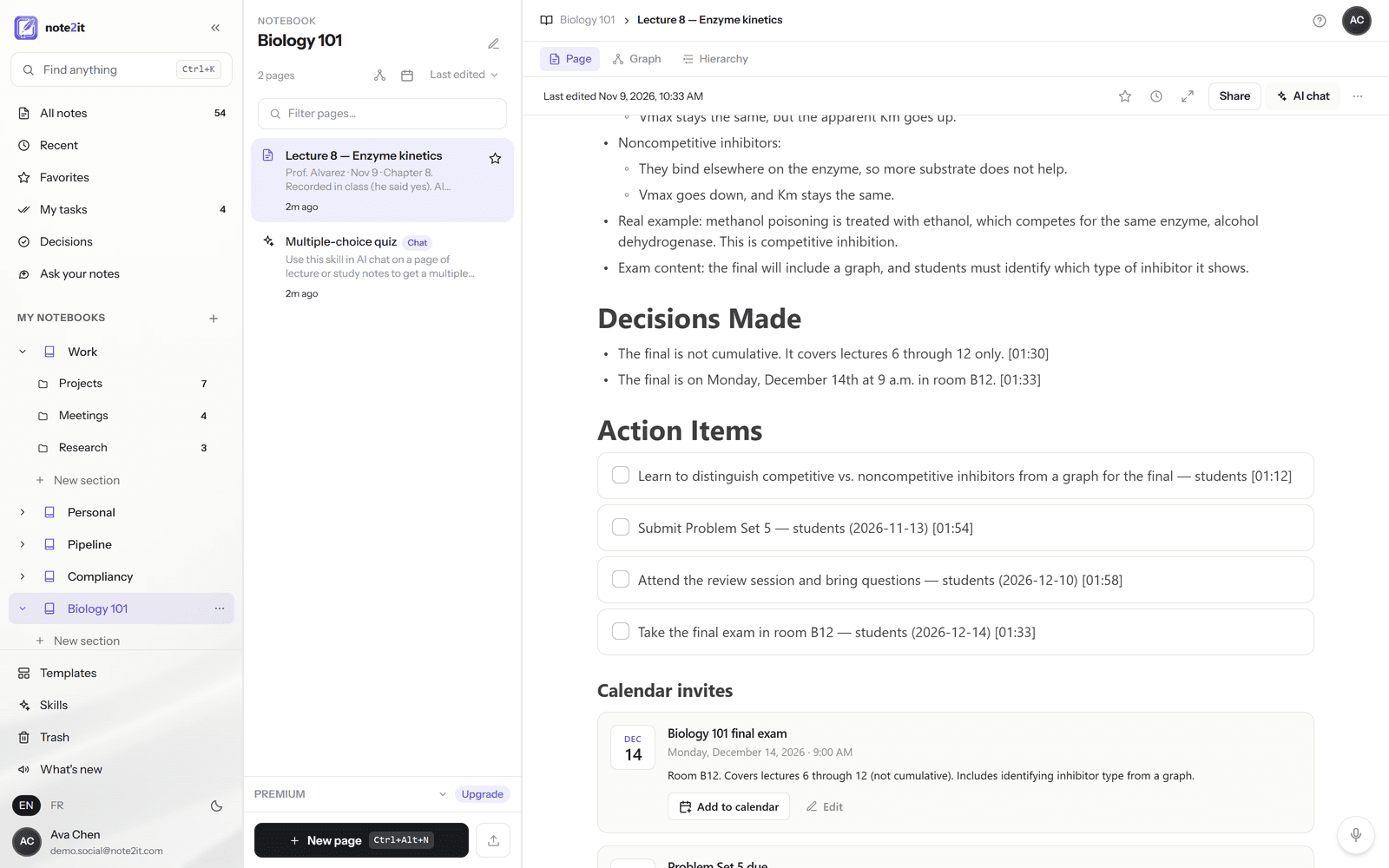
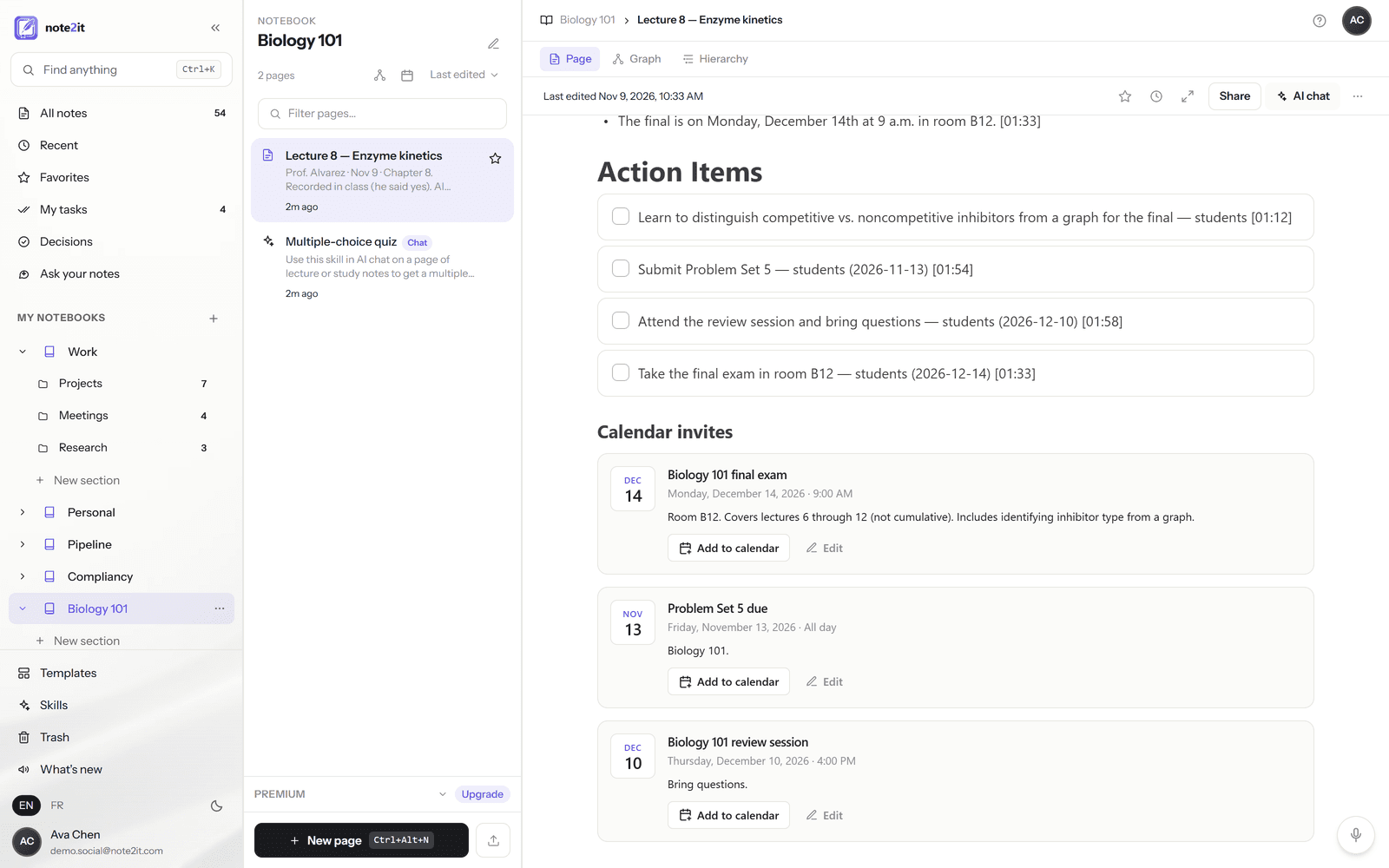
Professors announce deadlines the way they announce everything else: in passing, between two slides. The summary pulls them out. Under it, a card lists what it found ("Submit Problem Set 5", due on the date that "this Friday" works out to; "Attend the review session", December 10), each with the time it was said. Tick the ones you want and they become tasks with due dates in My tasks. Nothing becomes a task without your tick.
Dated events also arrive as calendar cards: the final exam on Monday, December 14 at 9:00 in room B12, the review session, the problem set. Add to calendar puts each one in the calendar you already use.
Now the part that works: the quiz
The summary is not the studying. It is the map. The studying is being asked a question and having to produce the answer. So open AI chat on the lecture page and ask for it: "Quiz me on this lecture. Focus on what will be on the final."
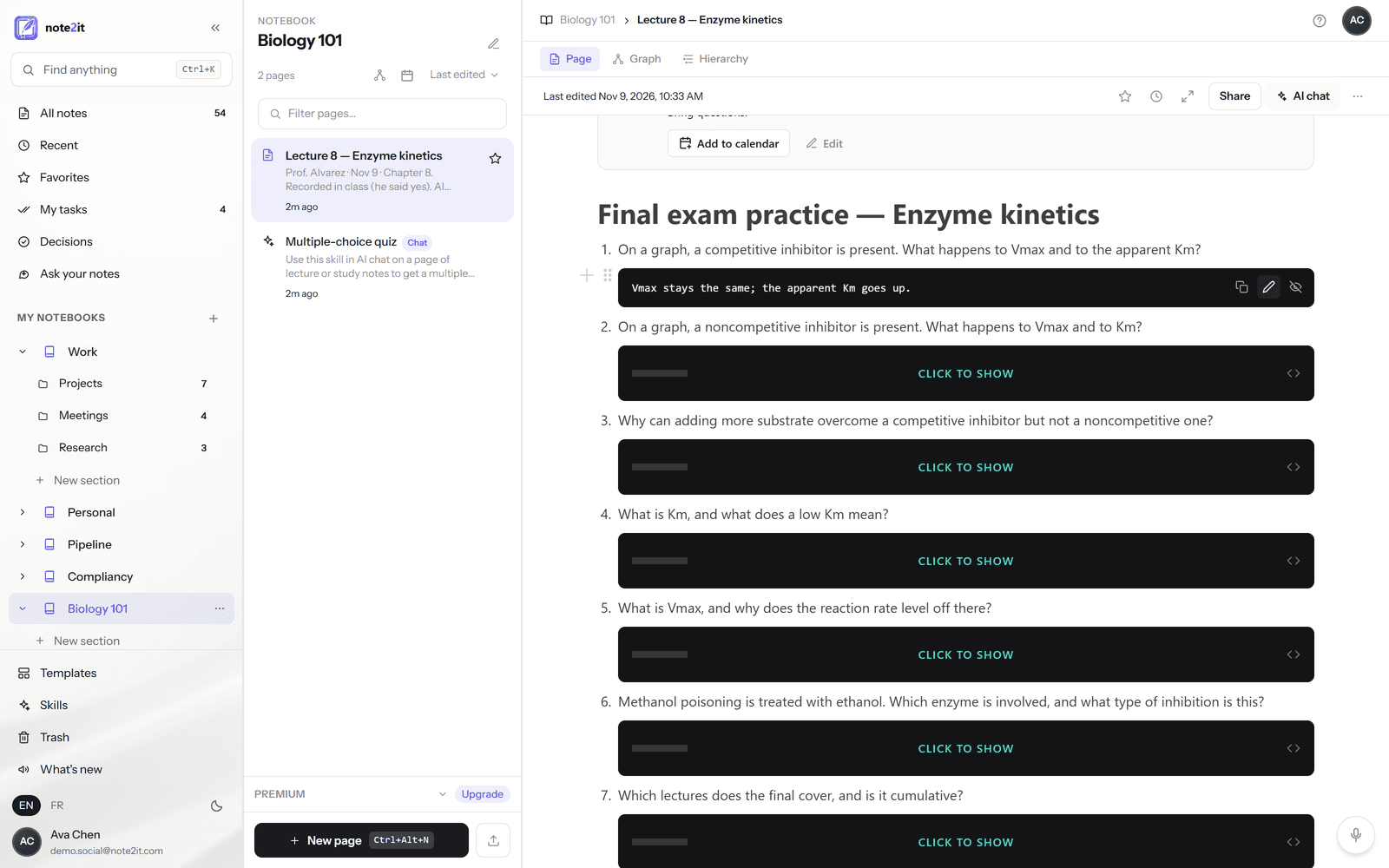
A quiz lands at the bottom of the page: numbered questions, each answer behind a dark bar that says Click to show. On our lecture, the first question was the professor's own warning turned around: "On a graph, a competitive inhibitor is present. What happens to Vmax and to the apparent Km?" Answer it in your head or on paper, then click. The answer hides again when you move on.
You get five questions if you just ask for a quiz (our request above, which asked for the exam material, got seven), as many as you name if you name a number, and up to twenty when you say "fully test me". The questions come from your page and the pages it links to, never from the internet's version of the topic. If the professor said it and it is in your notes, it can come up. And if a quiz comes back thin, that is information too: your notes on that lecture are thin.
Make it multiple choice
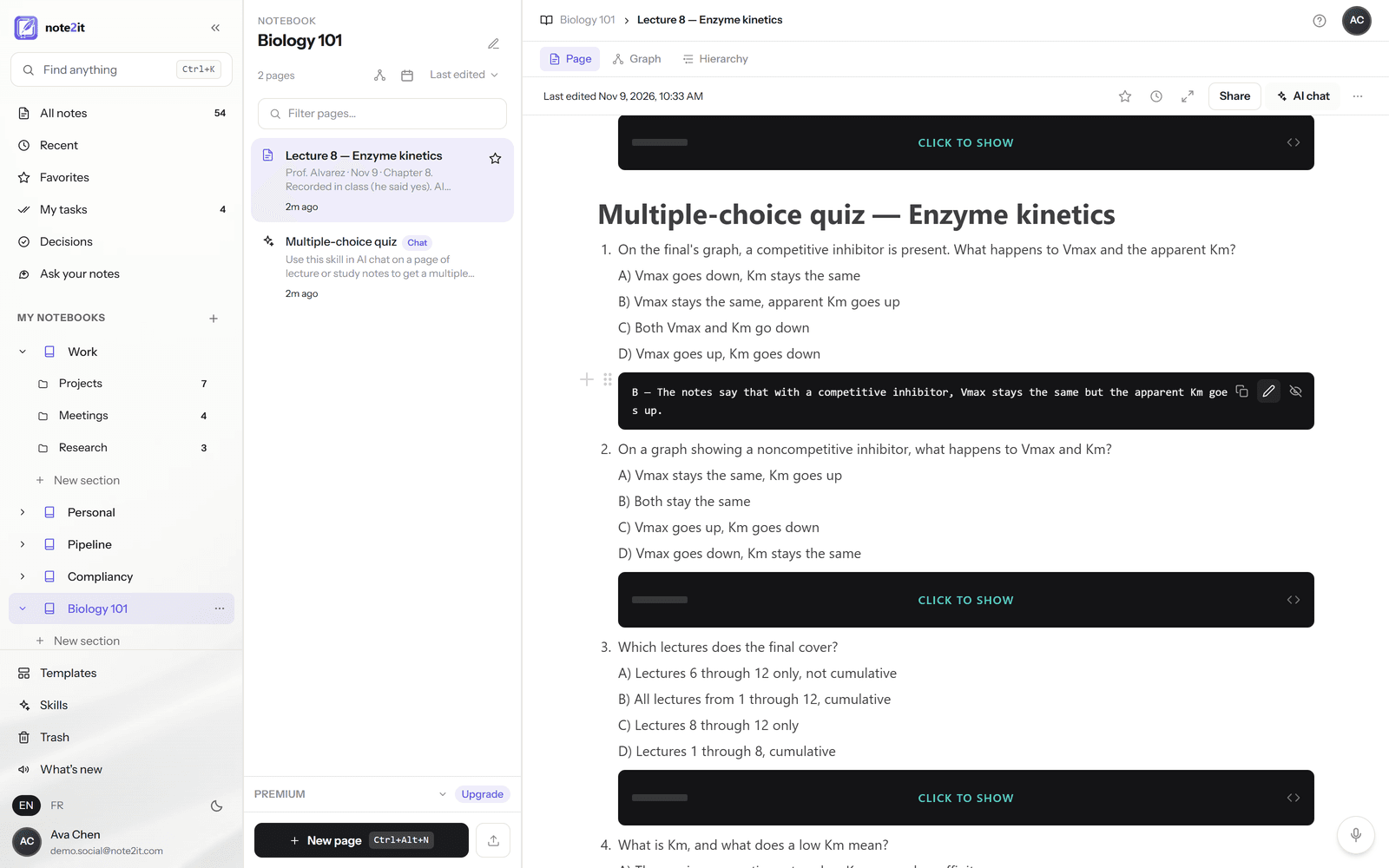
If your final is multiple choice, practise in that format. A skill is a page of instructions the chat follows. The one below tells it to write four options per question, to make the wrong ones plausible (the mistakes of someone who half-listened), to move the correct letter around, and to give one sentence of reasoning from your notes with each answer.
Download it, bring it into your notebook with Import files, open Share and switch on Skill. From then on, type / in AI chat on any lecture page and pick Multiple-choice quiz. On the demo lecture, question three was "Which lectures does the final cover?", with "All lectures from 1 through 12, cumulative" sitting there as option B for anyone who was not listening at 01:30.
Ask the whole course a question
One lecture is a page. A course is twelve of them, plus the slides. Ask your notes, in the sidebar, takes a question across every page ("Is the final cumulative, and what did the professor say will be on it?") and answers from your notes, with a source for each claim. When the source is a recorded lecture, it carries the time, and clicking it plays that moment.
Slides and handouts can live in the same notebook. Import PDF into this page turns a PDF into editable text, with its headings and lists, up to 50 pages per import on the free plan.
A four-week plan
Four weeks out: record every lecture that is left, one page each. Summarize the same day, while you still remember what the professor meant, and insert the summary into the page. Tick the deadlines.
Three weeks out: bring in the backlog. Import the slides for the lectures you did not record, and write three lines of your own on each: what it was about, what confused you. Ask for a five-question quiz on each page. Do not study the answers yet. Just find out where you stand.
Two weeks out: one or two lectures a day, "fully test me". Delete the questions you get right twice. What is left on the page is your real study list.
The last week: re-quiz only what is left, ask for fresh questions on your weakest lectures, and use the times in the transcript to listen again to the two-minute stretches you still cannot explain. The night before, stop early and sleep.
What is free, what needs Premium, and the student price
Free, on the Standard plan: your first 15 recordings, each with its timed transcript, cited summary, tasks and calendar invites. One notebook, with a section per course. PDF import. One Ask your notes answer a day. The limits that matter for lectures are about size: a single file can be 10 MB, which is about 40 minutes of audio recorded in note2it, and the plan holds 50 MB in all, roughly three hours of recordings. That is enough to try the whole system on a few lectures, or to record a long class in two parts. A recording imported from a phone is usually larger per minute, so it reaches the limit sooner.
Premium is $7.99 a month: unlimited recordings, 50 MB per recording (about three hours), 5 GB of storage, unlimited notebooks, and the AI chat, which is where quizzes, "fully test me" and skills live. You can pay month by month, so one month covers a finals season.
Students pay less. Email support@note2it.com from your school address and we reply with a personal code that brings Premium to $4.99 a month or $49.99 a year for twelve months. No ID photo is needed; the school address is the proof. Enter the code at checkout, where it says Add promotion code.
Whatever the plan, your recordings and notes are yours. We do not train AI models on them, and you can delete a recording, a page or your account at any time.
Start with one lecture
Pick the lecture you understood least. Ask the professor, press record, and by tonight you will have a transcript you can click through and a summary you can check. On Premium you will also have a set of questions you cannot answer yet. That list is the useful one.